Wednesday, July 3, 2013

Flame Studio Guitars/Basses


Here's a VERY cool collection of acoustic and electric guitars and basses plus a banjo thrown in as well.  The collection was done by Flame Studios.  While it does come in SoundFont format, I had issues bringing these directly into the Kronos, so I used the Giga version and did the conversion using Translator 6.0.  I had to break the collection in two with all the electric guitars in the first collection, while the acoustics, basses and banjo fill out the second.


FS COLLECTION
The first collection contains a Fender Jaguar, Fender Telecaster, and Gibson Les Paul all of which were sampled at three velocities plus a mute layer.  The Telecaster and Les Paul contain both pickups individually and in combination.  There are no loops and each note is sampled.  The guitars were sampled direct (DI) and through a Fender Reverb amplifier.  In most cases, SW#1 turns on/off the muted strings.  SW#2 often adds a light chorus effect.  Using VMT on the Kronos, the collection requires 105MB of free RAM.

+------------------------+-----------+-----------+
|Patch Name              |Patch Type |Patch ID   |
+------------------------+-----------+-----------+
|FS Fender Jaguar Amped  |Program    |U-G000     |
|FS Fender Jaguar Amped 2|Program    |U-G001     |
|FS Fender Jaguar DI     |Program    |U-G002     |
|FS Fender Jaguar FR Amp |Program    |U-G003     |
|FS Fender Jaguar FR Amp2|Program    |U-G004     |
|FS Fender Tele DI+Amp   |Program    |U-G005     |
|FS Fender Tele Bridge   |Program    |U-G006     |
|FS Fender Tele Neck     |Program    |U-G007     |
|FS Fender Tele DI+Amp   |Program    |U-G008     |
|FS Fender Tele 60s      |Program    |U-G009     |
|FS Gibson LesPaul Both  |Program    |U-G010     |
|FS Gibson LesPaul Neck  |Program    |U-G011     |
|FS Gibson LesPaul Bridge|Program    |U-G012     |
|FS Gibson LP BR Amped   |Program    |U-G013     |
|FS Gibson LP NK Amped   |Program    |U-G014     |
|FS Gibson LP NK Amped 2 |Program    |U-G015     |
|FS Gibson LP BR Amped 2 |Program    |U-G016     |
|FS Gibson LesPaul Dist  |Program    |U-G017     |
|FS Gibson LesPaul Dist 2|Program    |U-G018     |
|FS Gibson LesPaul Dist 3|Program    |U-G019     |
+------------------------+-----------+-----------+

FS COLLECTION DOWNLOAD LINKS

FS COLLECTION 2
This collection includes some nicely sampled Ibanez and Seagull steel string guitars, as well as Ibanez and Yamaha electric basses.  In addition, a Washburn acoustic bass guitar and Kay 5-string banjo are included.  With the guitars, again SW#1 typically turns on/off muted strings.  Using VMT on the Kronos, the collection requires 73MB of free RAM.

+------------------------+-----------+-----------+
|Patch Name              |Patch Type |Patch ID   |
+------------------------+-----------+-----------+
|FS Ibanez Acoustic Gtr  |Program    |U-G000     |
|FS Ibanez Ac. FenderAmp |Program    |U-G001     |
|FS Ibanez Muted 5ths Gtr|Program    |U-G002     |
|FS Ibanez Muted5ths Gtr2|Program    |U-G003     |
|FS Ibanez Blues Acoustic|Program    |U-G004     |
|FS Ibanez Slaps/Slides  |Program    |U-G005     |
|FS Seagull Acoustic Gtr |Program    |U-G006     |
|FS Seagull Ac. FenderAmp|Program    |U-G007     |
|FS Seagull Muted5ths Gtr|Program    |U-G008     |
|FS Seagull Muted5thsGtr2|Program    |U-G009     |
|FS Seagull Slaps/Slides |Program    |U-G010     |
|FS Seagull/Ibanez Double|Program    |U-G011     |
|FS Seagull/Ibanez Amped |Program    |U-G012     |
|FS Kay 5-String Banjo   |Program    |U-G013     |
|FS Ibanez El Bass SW2=Ch|Program    |U-G014     |
|FS Yamaha El Bass SW2=Ch|Program    |U-G015     |
|FS Yamaha Bass J-Station|Program    |U-G016     |
|FS Yamaha Bass Layered  |Program    |U-G017     |
|FS Yamaha Bass Noises   |Program    |U-G018     |
|FS Washburn Ac Bass DI  |Program    |U-G019     |
|FS Washburn Ac Bass JS  |Program    |U-G020     |
+------------------------+-----------+-----------+


These samples are released under the GNU GPL License.. The source code being the sf2 files (of which contain the audio samples and settings). The samples and settings can be accessed within Viena and Translator Free on windows or Swami on linux. This license means that you can do what you like with them but if you create any samples from them or improve on them then you have to use the same license in your projects. This way it keeps it open source (and therefore free). This license is only concerned with the source code. Any music you create with them is nothing to do with me (i.e. you take all the royalties and use whatever license you like).

http://www.flamestudios.org/free/Soundfonts

FYI: added RAR links 7/22/2013

Saturday, March 23, 2013

Reeds, Tapes and Transistors


Reeds, Tapes and Transistors is a sampleset of vintage keyboard instruments.  Two of these, the CP-80 and RMI piano, have previously been posted.  I included them so as to condense these smaller libraries into a single somewhat larger library of related instruments.

The CP-80, Wurlitzer and Pianet T come from Greg Sullivan's excellent public domain GigaSampler libraries.  The Tony programs were done by BillW.

The ten new Mellotron samples are from taijiguy.  Each note is sampled and held until the tape loop stops.  More info can be found here.

Included samples: Cp-80, Wurlitzer 200, Pianet T, RMI ElectraPiano, Mellotron 300 & 400, Vox Continental and Farfisa Mini Compact.  The last three organ programs using Korg internal samples


CP-80 2                 : Program U-G001             
CP-80 Tony 1            : Program U-G002              
CP-80 Tony 2 Lwr Vel    : Program U-G003              
CP-80 3                 : Program U-G004              
Supertramp Wurlitzer    : Program U-G005              
Wurlitzer EP200         : Program U-G006             
Pianet T                : Program U-G007             
RMI Electrapiano        : Program U-G008             
StringSection           : Program U-G009              
MKII Violins            : Program U-G010              
Cello                   : Program U-G011              
M300A                   : Program U-G012              
M300B                   : Program U-G013               
MkII Flute              : Program U-G014              
Woodwinds               : Program U-G015              
Choir                   : Program U-G016              
MkII Brass              : Program U-G017                
GC3 Brass               : Program U-G018               
Vox Organ(mixfaders 1+2): Program U-G019               
Ray Manzarek            : Program U-G020              
Farfisa ALL Stops +Boost: Program U-G021              
Farfisa SW2=XX000 XXX0  : Program U-G022              
Farfisa SW2=XXX0 XXXX   : Program U-G023               
Vox E.Organ 1           : Program U-G024             
Vox E.Organ 2           : Program U-G025              
Vox Organ Perc          : Program U-G026

Zip File:

DOWNLOAD LINK

Thursday, January 31, 2013

Freeing Up RAM

As it comes from the factory, the original Kronos is pretty tight on available sample RAM. After the all the standard libraries are loaded you have little left for new samples. Since OS version 1.5 you’ve been able to add an additional stick of RAM, which is highly recommended, but you can also go about managing your RAM in a pragmatic fashion, unloading samples libraries for which you have little use. Outside of 320MB of base “ROM” everything else, every sample, program, combi can be replaced with your own. We’re talking tens of GBs of samples and thousands of programs.

FREEING UP RAM BY CHANGING PRELOAD.KSC

When the Kronos boots, it loads 320MB of base "ROM" and a large file called PRELOAD.KSC. PRELOAD.KSC contains the large piano and drum libraries, the EXs3 Brass/Winds, etc. On disk it takes up 12GB and 814MB of RAM. You can mange this file and remove libraries and even specific samples from loading.

As an example, if you primarily use your Kronos for gigging and never use the large stereo drum libraries, why not just remove them from PRELOAD.KSC? You can use the RAM you recovered for something more useful.

Do the following:

  • Go to GLOBAL==>BASIC==>SAMPLE MANAGE.
  • Click on the drop-down menu (very top right corner) and select UNLOAD ALL IN BANK...
  • In the dialog box change the selection to EXs8 (these are the Rock Ambience Drums) and click OK
  • Repeat these steps but change the selection to EXs9 (Jazz Ambience Drums)
  • If you were paying attention to the Memory use scale at the top you should find yourself with more available RAM

A few more steps:

  • Go to DISK==>FILE==SAVE.
  • Click on the drop-down menu (again very top right corner) and select SAVE SAMPLING DATA
  • In the text box at the top give it a name, e.g. "PRELOAD (no drums)"
  • Make sure LINKS TO EXs & USER SAMPLE BAKS is selected (this creates a small pointer file vs. re-saving 11GB of samples)
  • Make sure ALL is selected (in the Sampling Mode Data Options section) and click on OK.
  • Now go to GLOBAL==>BASIC==KSC/AUTOLOAD.
  • Near the bottom-left click on the ADD KSC button.
  • Find the file you just saved (PRELOAD (no drums)) and click on ADD.
  • Now click on the red button next to PRELOAD.KSC in order to deselect it and click on the same button next to PRELOAD (no drums).KSC to select it.
  • Click on the AUTO-LOAD NOW button near the bottom-right

Now you've freed up RAM for more user samples and your Kronos will boot without the drums until you change it back.


Loading _UserBank KSC and PCG Files


LOADING USER SAMPLES AND PROGRAMS

Often when you download a user samples library for the Kronos it comes with instructions detailing how it should be loaded, but that's not always the case. I thought it would be helpful to examine the files that come with a typical download and explain the function fo the files a little.

Example files: If you downloaded the CP80b.zip posted above you would find the following files:

CP80b (folder)
CP80b.PCG
CP80b.KSC
CP80b_UserBank.KSC

You should have unzipped these files and copied them to a folder on the SSD of your Kronos.

  • CP80 (folder) contains all of the samples. You shouldn't have to deal with this folder at all.
  • CP80b.PCG contains the Programs. You will be loading this file. PCG BTW stands for Programs, Combis and Global.
  • CP80b.KSC This is the old version of the KSC. It will load everything into RAM. You typically don't need to worry about this file, but if you did want to go in and make changes to the actual samples/multisamples then you would use it. Editing of the samples/multisamples must be done in RAM.
  • CP80b_UserBank.KSC This is the new version of the KSC file format that supports VMT (streaming from SSD of user samples). You will want to load this file.


So the two important files are CP80b.PCG and CP80b_UserBank.KSC. 


LOADING _USERBANK.KSC

To load the UserBank.KSC do the following:

  • Go to DISK and find the _UserBank.KSC for the library, e.g. CP80b_UserBank.KSC
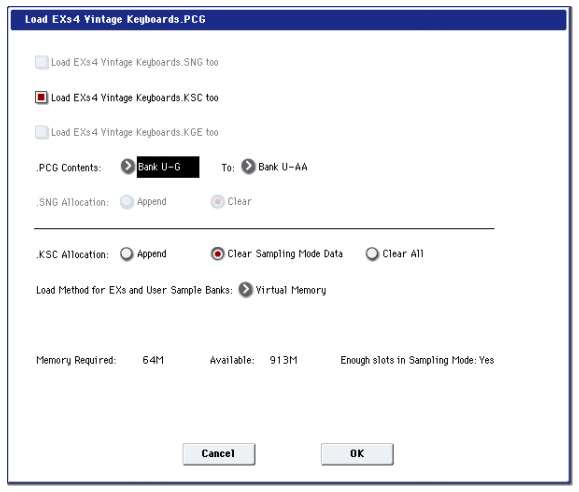
  • Click on the LOAD button near the bottom right. You will see an information screen similar to the one above.
  • In the KSC ALLOCATION section you have three choices. I'll go through each of them in more detail.
APPEND: will simply add CP80b_UserBank.KSC to any samples that are in RAM or used by EXS or other UserBanks. If you have enough available RAM, this is probably what you want to do.
CLEAR SAMPLE MODE DATA: This is a very useful option if you've converted, for example, a soundfont into the Kronos. When the Kronos does the conversion, all the samples are in RAM. When you save the sample data a _UserBank.KSC is created. Now when you load the UserBank (streaming version) of the KSC you will want to clear out the samples from this library that are currently in RAM. This option only removes samples in the sampling area and does not touch the EXs like those loaded in PRELOAD.
CLEAR ALL: This does what you would expect. It clears EVERYTHING out the sample area as well as any EXs libraries that are loaded. You would possibly use this option if you were loading in a very large KSC--maybe something that you would use instead of PRELOAD.

  • Next is the LOAD METHOD FOR KSCs AND USER SAMPLE BANKS. Generally you will just want to keep this at the KSC SETTING. You can flip through the other options, RAM and VIRTUAL MEMORY and see the impact of the two methods on the memory required. Typically KSC SETTING and VIRTUAL MEMORY are the same thing.
  • Press OK to LOAD.

LOADING THE PCG FILE

Now let's take a look at the CP80b.PCG file. Before actually loading the file it's often useful to do a little investigation before hand.


  • With PC80b.PCG selected, press on the OPEN button at the bottom. It will show a folder called PROGRAMS.
  • Again press the OPEN button. It now says BANK U-G. Remember this, U-G. When I saved this file on my Kronos, it was in Bank U-G.
  • Press the OPEN button one more time. Now you can see a list of all the programs in the bank and what's really cool is you can audition them right from here. Just select the program and you can play it. You can even load individual programs and save them to specific program slots.
  • Let's back out of this by hitting the UP button three times. You should be back to CP80b.PCG.
  • With PC80b.PCG selected click on the LOAD button. You will see a dialog box similar to the one below which was pulled from the manual.
  • Ignore the top options (you've already loaded the .KSC file) and instead look at the .PCG CONTENTS. It has a couple of options.

ALL: All will take any and all program, combi and global banks and load them into the exact location(s) they were saved to. This might or might not be what you want to happen. We know from investigating the PCG file above, that I had saved it to Bank U-G. If you would choose ALL now, it would load and overwrite everything in your U-G bank.
SPECIFIC BANK: If instead you click on the arrow (or use the value dial) you will get a list of all the program banks. Using this option you will want to select BANK U-G. A TO: field now is selectable to the right and you can choose any destination bank. This option allows you to store the bank anywhere you'd like, but you must properly choose the source bank (U-G in our example).

  • Click on the OK button.

Now you're Programs and Samples for this library are loaded. The Programs are non-volatile (you won't have to loaded them each time). The KSC will need to be loaded each time you start up the Kronos, but you can add it to the KSC AUTO-LOAD detailed in the earlier post.

Saturday, December 22, 2012

Converting Sample Libraries to the Kronos


In this tutorial I'll go through the steps I recommend when converting computer-based sample libraries to the Kronos. 

THREE WAYS TO GET LIBRARIES INTO THE KRONOS

1) If the sample library is in SoundFont2 (SF2) format, you can of course directly import it.  As a side note, there are a lot of funky SF files out there and it’s not unusual to run into issues when converting them.  Just be aware of this, it can be hit and miss.

2) If you have soft synths like Synthogy Ivory, East West Quantum Leap, or products for Kontakt that run in the Kontakt player or show up in the library tab in the full version of Kontakt, you can bring these into the Kronos only if you re-sample them.  Because you don’t have access to the actual WAV samples, you cannot simply convert them into another format like SF2 and bring them into the Kronos.  They need to be re-sampled.  You would use software like Sample Robot or Extreme Sample Converter to accomplish this.  These products, through an automated process, go and re-sample your libraries.  You could also use this approach sample hardware.  In this tutorial I’m not going to be covering re-sampling.

3) What I will be covering are the steps I would recommend when converting standard sample libraries, and specifically Kontakt libraries, into the Kronos.  What I mean by standard libraries are those that don’t have copy protection and give you access to actual WAV samples.  If you have a library which REQUIRES the full version of Kontakt in order to run, then it’s a standard library and doesn’t typically have copy protection.  Some examples include:
  • Cinesamples – Piano in Blue
  • Sampletekk libraries
  • SoundIron – libraries such as Emotional Piano
  • Hollow Sun
  • and lots more
NOTE: There are a few libraries that DO require the full version of Kontakt but where the WAVs were saved using compression (.NCW).  You will need to re-save them without compression to get access to the waves.

CLEANUP PRIOR TO CONVERSION

One problem with converting these large libraries to the Kronos is that they can be very detailed and include things like release samples, noises, and other layers that add to the sound.   Now I would argue, that while these sounds do add detail, these components are considerably less critical than the overall sustain sound.  So my recommendation is to edit the library to eliminate everything but the base sounds, in order to guarantee a successful conversion to the Kronos. If you want to, you can add detail sounds later.  It’s up to you as to how much detail you think is necessary and how much work you want to put into it.

So one aspect of the clean up of the library is removing everything but the essential sounds and another is to make sure the layers are lined up nicely in order to create multisamples in the Kronos.  

Fig.1
Here are images of two different piano libraries within Kontakt.  The samples are mapped across the keyboard horizontally and shown at rising velocity layers vertically.  Fig. 1 has a very complex mapping.  Essentially, each note has it’s own velocity map.  This is going to be a challenge to convert cleanly into the Kronos.  If you would still like to convert a library like the one shown in Fig.1, I would recommend using the re-sampling process.

Fig. 2
The library shown in Fig. 2 is mapped in a much more straightforward manner.  This is how you want things to look.  Each velocity layer is going to end up being a multisample in the Kronos. Converting the library on the right should be easy.

While I’m going to be using Kontakt, if you have libraries in other formats such as EXS24 in Logic or Halion, you should be able to use their editors to do the same cleanup or prep that I’m going to show you in Kontakt.

Open Kontakt (standalone mode is preferred).  I use version 3 because it’s supported by all of the conversion utilities (Translator, ESC, CDxtract).  Only Translator 6 supports Kontakt 4 and none support Kontakt version 5.

Fig. 3
The example I’m using is Sampletekk’s Black Grand (Fig.3).  It is available at their website for download.  It’s a Steinway D mic’ed at three positions.  You can purchase the close, medium ambient, and ambient versions separately or as a collection.  I will be using the Close Grand.  It comes in EXS for Logic, Halion and Kontakt NKI format.  The programs are numbered.  Programs one through six are progressively mellower.  Programs seven through ten are progressively brighter.  Sampletekk approaches this is a similar way to the Kronos pianos where the dark or more mellow pianos use more the lower velocity layers while the brighter ones use more of the higher velocities. 

Fig. 4
I’m going to choose Close Grand #3 which is a 14-velocity layer piano.  In order to get to the editors in Kontakt you need to click on the wrench icon.  You will be using the Group and Mapping editors.  As you can see in the mapping editor (Fig. 4) there are zones on top of zones.  This is going to create issue if you try to bring it into the Kronos without simplifying the mapping.  


Fig. 5
So use the group editor to delete all groups other than the basic sustain groups.  Select the non-sustain groups (in this example it would be all the pedal down and rel groups) and choose delete selected group(s).  Now you should have a mapping like what you see in fig. 5 that is very clean with only just the sustain level remaining.  Save the file with a new name….   And close out of Kontakt.


CONVERT KONTAKT TO SF2

In order to convert these libraries into the Kronos, you’re going to have to first convert them to Soundfont 2 (SF2) format, which the Kronos can then directly import.  There are several conversion utilities that can do this: 
I have found these conversions, especially after one has gone through the cleanup process described above, to work very well.  I use Translator 6 (Mac).  The process of conversion is simple.  Open the .nki file, right-click on it and choose "Convert As..."  Then Choose "Soundfont" and select a destination.  After the conversion is done, use FTP or copy the file to a USB stick and bring it into the Kronos.  You should find that the SF2-Kronos conversion creates a single program with a mapping just like the clean version in Kontakt (or other software sampler).


WRAP UP

I hope this helps you in converting some of your sample libraries into the Kronos.  The process might seem a bit complicated at first, but once you get the hang of it you'll find it's really not bad.  Spending a little more time up front leads to a better conversion in the end. 

Tuesday, November 27, 2012

Using Kronos CX-3 with a Ventilator

The Neo Instruments Ventilator is an excellent digital simulation of the Leslie 122 rotary speaker.  Here's an easy what to integrate the Kronos and Ventilator.

In the setup example, we'll keep the Main L/R outputs of the Kronos connected to the mixer or speakers.  Note that on the Kronos there are the Main L/R outputs and then four individual outputs (1 through 4).

First, physically connect the output of the Kronos to the input of the Ventilator.  As both the PRE AMP out and the Ventilator in are both mono, you will only need one cord.  Make note of the Kronos output that you've used to make the connection.


In Program mode select EXi 1 ==> AMP/VC/ROTARY ==> AMP/VC.
In the AMP TYPE box, select PRE AMP.
At the bottom of this page in the MAIN OUTPUT section is OUTPUT LEVEL (use this parameter to control volume level going into the Vent. It is easy to overdrive the Vent using the Kronos).


Now open IFX section and go to the ROUTING page.  At the bottom, BUS SELECT, choose the output that corresponds to the output you're using on the back of the Kronos.


At this point you should be be getting signal into the Ventilator and hearing sound from its outputs.  You can always run it into a mixer or powered speakers.

Another interesting option is to run the Ventilator outputs back into the Kronos.  This allows you to add FXs like reverb, have more consistance control over levels and eliminate the requirement for an external mixer.  To do this, connect the L/R outputs from the Ventilator to the analog inputs #1 and #2 on the Kronos.  Make sure the large switches are pushed in (line level) and adjust the trims knobs closer to min than max.

Click on PLAY and then AUDIO IN/SAMPLING to get to the screen below.  Unselect USE GLOBAL SETTING as we're going to make the changes at the program level vs. globally.  The first two columns correspond to the analog inputs 1 & 2 on the Kronos.  If you don't want to add insert FXs you can select L/R.  But if you do want to add insert FXs, choose IFX1 (as shown below).  If you want to send to the MFX1/2 master FXs, you can also do that via the SEND 1 to MFX1 or SEND 2 to MFX2.  If you see the warning ADC OVERLOAD! you need to turn the physical gain controls on the back of the Kronos for both inputs.


Thursday, March 1, 2012

Sonatina Strings

This is a sample-set based on the public domain Sonatina Orchestra.  The strings were recorded in stereo so I brought the WAVs into the Kronos in stereo.  The .KSC is 86MB in size.  It includes sustain, staccato and pizzicato for 1st/2nd violin, viola (sustain and pizz only), cello and bass sections.  There is also a solo violin.

I created multisamples based on each of the articulations listed above.  In addition, I created some hybrid ensemble multisamples.  Ensemble1 consists of 1st violins and cellos.  Ensemble 2 includes 2nd violin, violas, and basses.  There are sustain, staccato and pizzicato versions of these ensemble multisamples.  This allows you to create larger sounding strings at the program level without the need to create a combi.

All the multisamples play within their normal lower limits.  This allows you to place, for example, violins and violas in the same osc without the issue of violins playing too low.

Download Sonatina-Strings

Here's a link to the Sonatina Symphonic Orchestra: http://sso.mattiaswestlund.net/

Program Listing

Sonatina Ensemble 1     : Program U-G000              
Sonatina Ensemble Pizz  : Program U-G001               
Violins + Violas        : Program U-G002             
Violins + Violas + Celli: Program U-G003             
Sonatina Violins + Celli: Program U-G004             
1st + 2nd Violins Dyn   : Program U-G005            
1st + 2nd Violins       : Program U-G006
1st Violins             : Program U-G007
1st Violins Dyn         : Program U-G008            
1st Violins Stacc       : Program U-G009          
1st Violins Pizz        : Program U-G010 
2nd Violins             : Program U-G011           
2nd Violins Dyn         : Program U-G012 
2nd Violins Stacc       : Program U-G013        
2nd Violins Pizz        : Program U-G014          
Sonatina Solo Violin    : Program U-G015         
Violas                  : Program U-G016 
Violas Pizz             : Program U-G017
Cellos                  : Program U-G018          
Cello Dyn               : Program U-G019 
Cello Stacc             : Program U-G020         
Cello Pizz              : Program U-G021         
Basses                  : Program U-G022         
Basses Dyn              : Program U-G023 
Basses Stacc            : Program U-G024           
Basses Pizz             : Program U-G025